When you send inventory to Walmart Fulfillment Services (WFS), you can use a Walmart preferred carrier to ship and schedule delivery. For full truckload (FTL) and some less than truckload (LTL), we’ll also schedule the carrier pickup for you. In this guide, learn how to select a preferred carrier and get an estimated shipping price.
Create a shipping plan
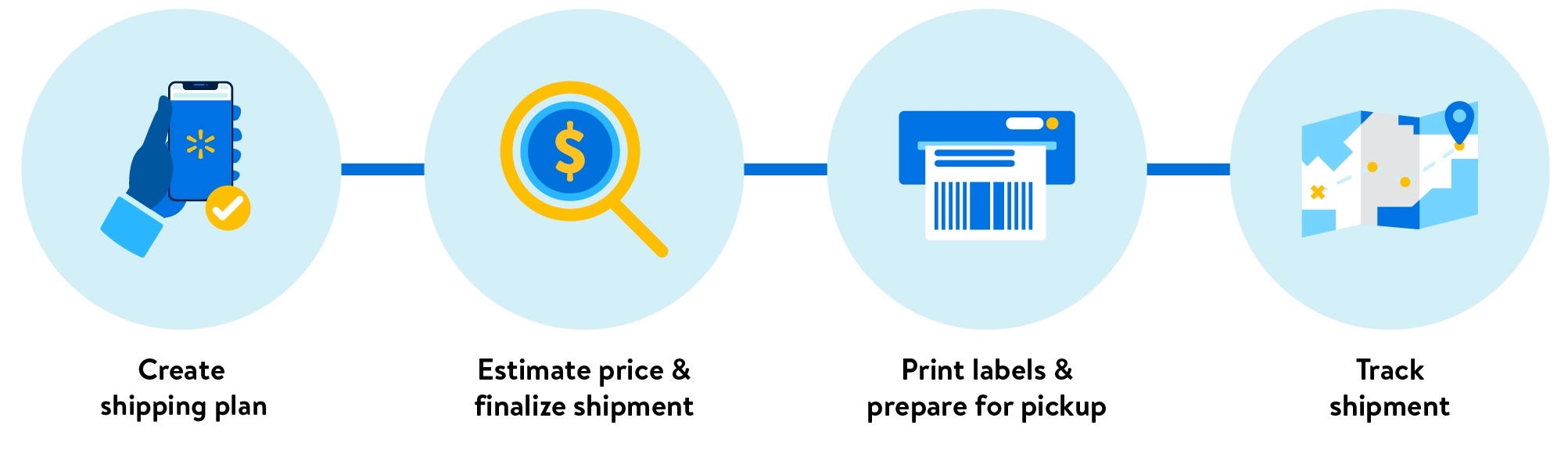
Step 1 – Get started
Log into Seller Center and go to the Shipping Plans page, then select Create plan.
Step 2 – Add items
Search for items in your catalog, or upload a spreadsheet with multiple items at once. Then enter the number of units you're sending and how they're packed.
For more detail on creating shipments, view Send domestic inventory.
Step 3 – Choose distribution
Your plan may be split into multiple shipments to help with next-day and weekend fulfillment. If so, you’ll see an option to distribute inventory yourself or use Inventory Transfer Service.
Step 4 – Select shipping
Choose whether you’re shipping as small parcel, LTL or FTL. Then scroll down to either review or add dimensions and weight for the shipment. Once you’ve finalized packing details, select Confirm to see estimated prices and transit in the cards above. If you have multiple shipments, make sure to do this step in each tab.
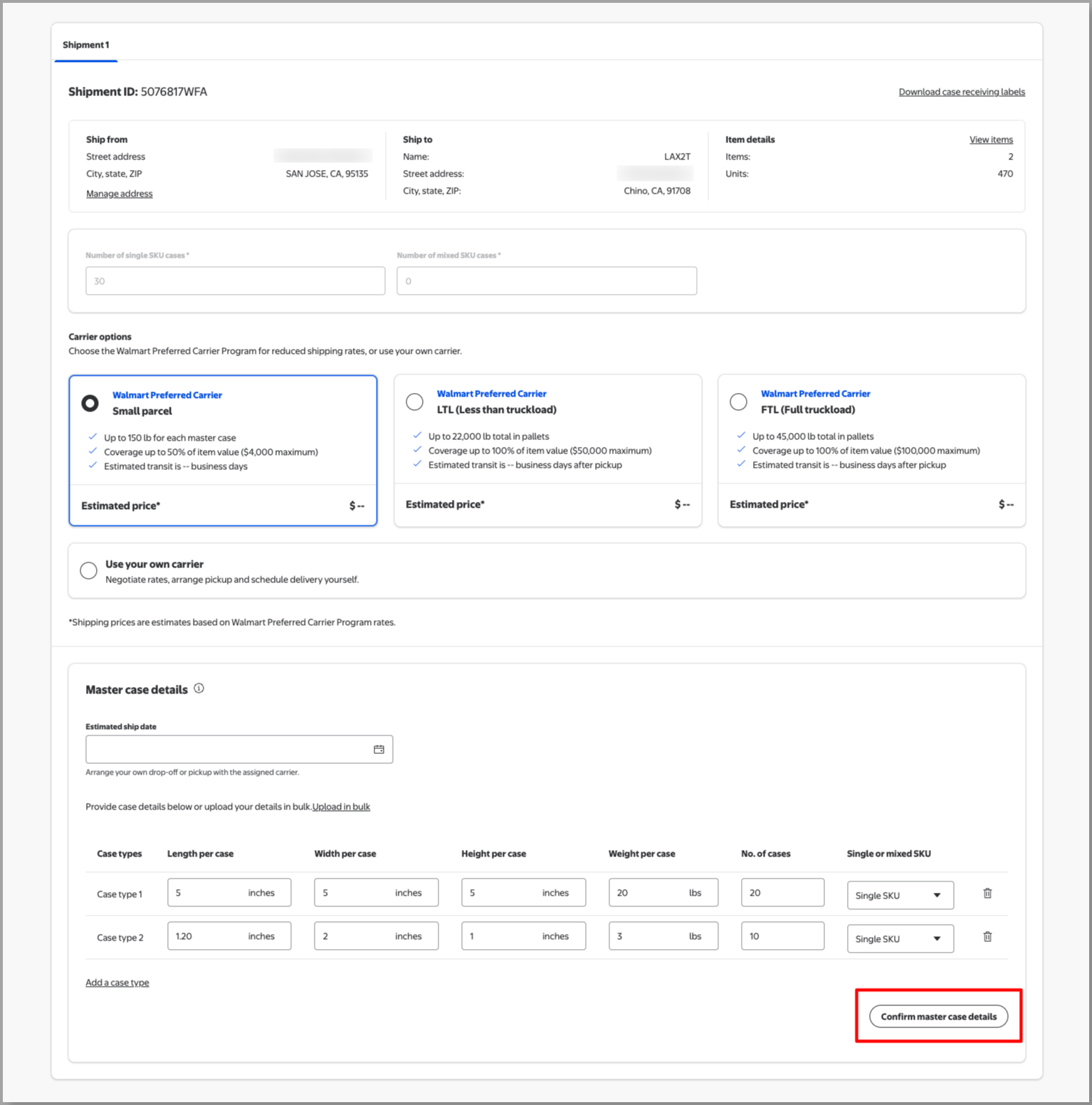
You can also download receiving labels for master cases. This is helpful if you want to palletize the shipment first and then edit the shipping plan.
For LTL and FTL, you’ll also add a preferred pickup date. We’ll use this date to schedule with the carrier, but the actual pickup date may differ based on operational requirements.
Step 5 – Add contact and operating hours
This step is optional for parcel.
For LTL and FTL, add contact info for your warehouse. We’ll email the bill of lading to this person, and the carrier may also send updates about the pickup.
You’ll also add operating hours for when your warehouse is open, a preferred pickup window and any pickup instructions. Make sure these are accurate so we can schedule a pickup with the carrier.
Step 6 – Review shipping plan
Confirm the details for each shipment, then select Create plan. For FTL, we’ll assign a preferred carrier within 24 hours of your pickup date.
What to expect next
For LTL and FTL shipments, your preferred pickup date is the earliest date you can expect the carrier to arrive. We'll coordinate with the carrier and email you a confirmed date. For more on the pickup process, go to Walmart Preferred Carrier: Prepare for pickup.
How to void charges
Once you’ve submitted the shipment, you’ll have a limited window to void the charges and edit: 24 hours for parcel and 1 hour for LTL and FTL. To void charges, search for the shipping plan or shipment on the Shipping Plans page. Then select View plan and look for the Void charges option in each shipment.