If you need to update your inventory in bulk, you can do so using the Inventory template in Seller Center. Keep reading to learn how to complete and submit an Inventory template.
You must have an existing fulfillment center added to your Seller Center account before you can update your inventory. After you’ve added the fulfillment center, wait at least four hours before attempting to complete an Inventory template. If you attempt to update inventory before your facility is fully processed in our system, you will receive an error.
Update inventory
Step 1 – Get started
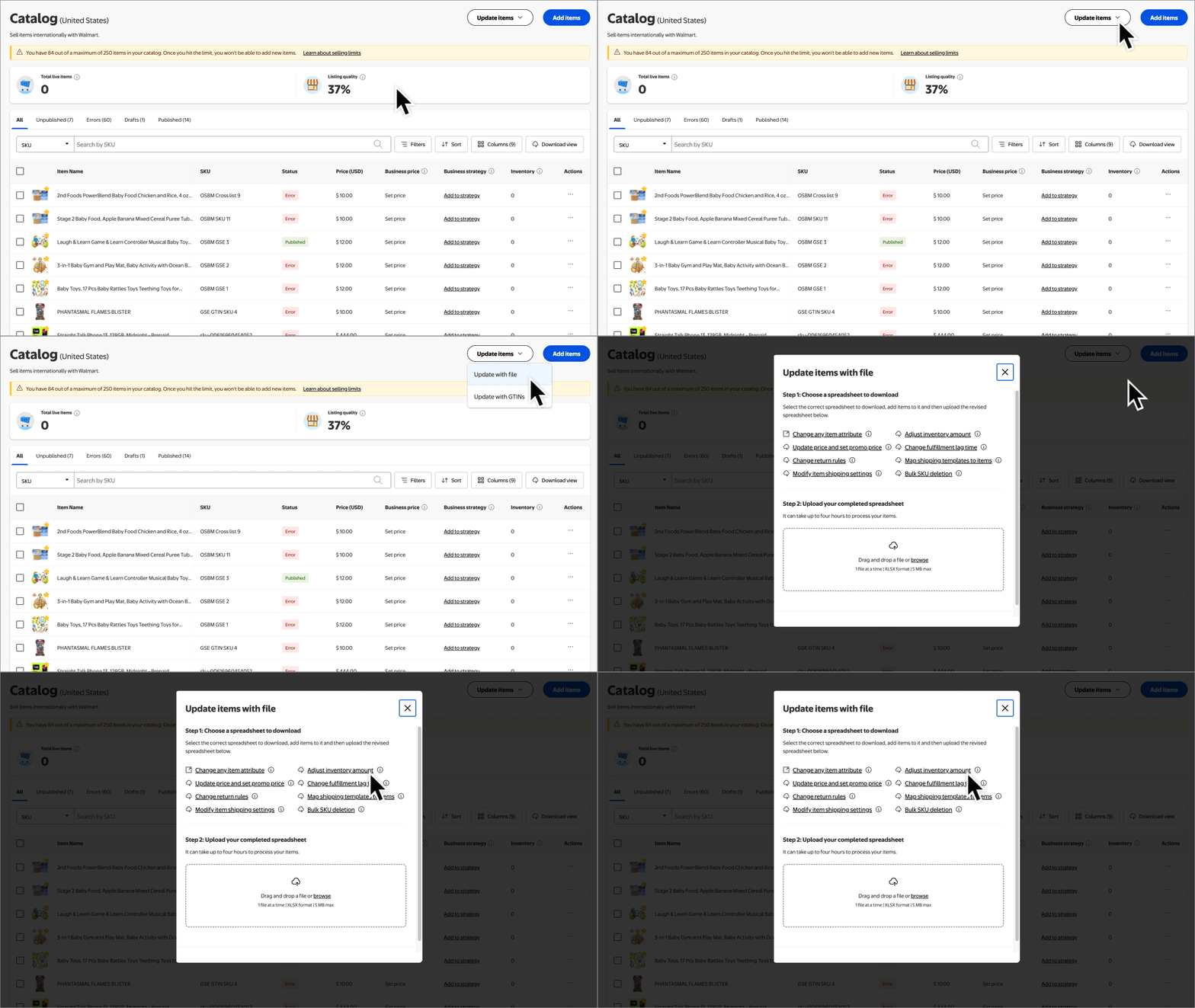
Navigate to your Catalog in Seller Center. Select the Update Items button and choose Update with file from the dropdown menu.
Step 2 – Download and complete the Inventory template
Select the Adjust inventory amount link and save the template to your computer. Then open the template and make your updates.
Step 3 – Upload the template
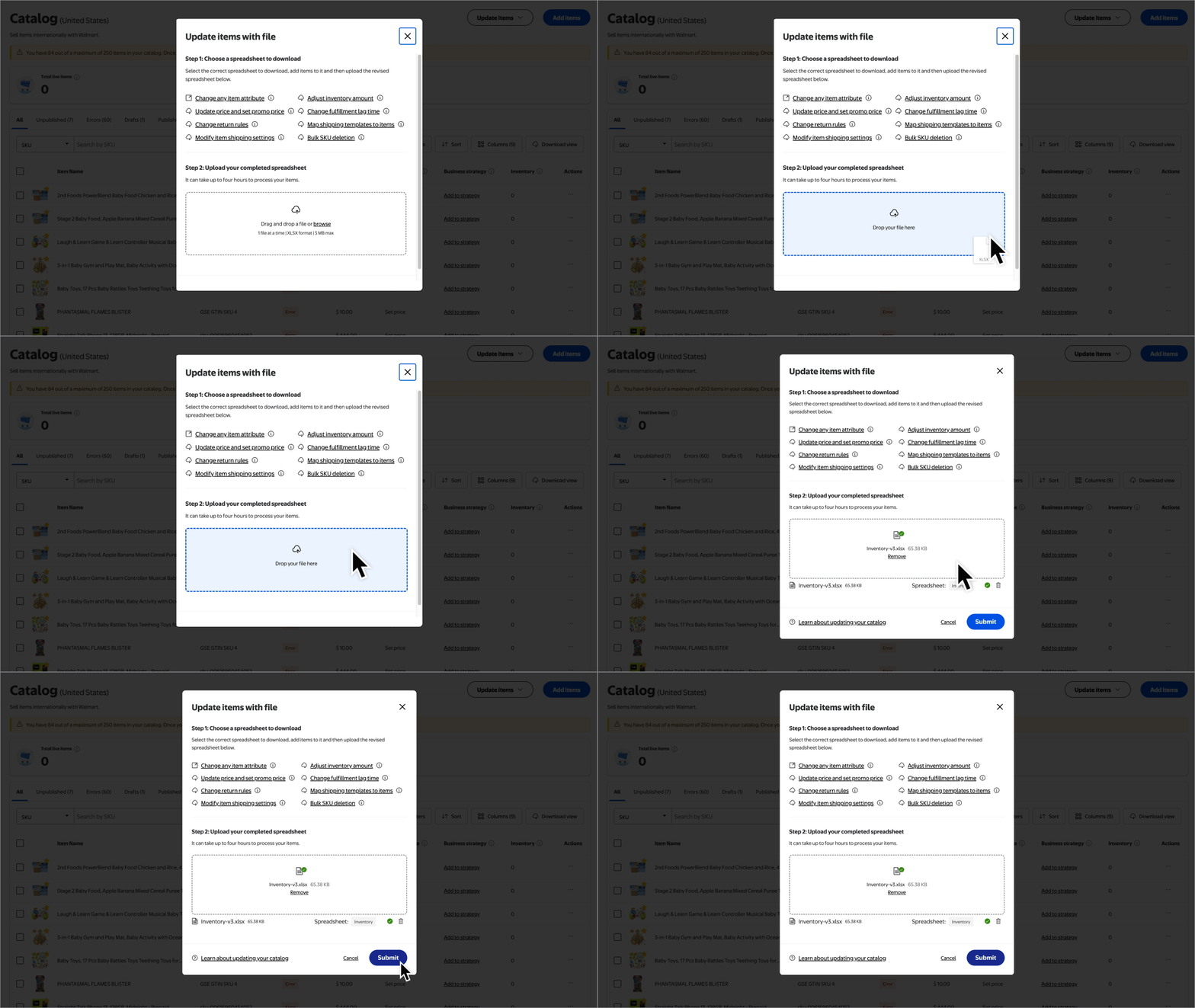
Navigate back to your Catalog and select the Update items button and choose Update with file. Then use the file browser window to upload the template. When you’re ready, select Submit.
Updates can appear in as quickly as 15 minutes or may take up to four hours.